


Just another hoax: Money Bags
URBAN LEGENDS: FALSEby Glenn Littrell (archived from www.glennlittrell.org)
This one gets re-circulated every month except with the month changed…just look at your calendar to verify its a hoax and stop circulating this. We’re like a bunch of ‘monkey see, monkey post’ idiots. This hoax may seem harmless, but we do the same thing with untrue religious diatribes, political lies, and just plain hateful, ignorant, crap. Fact check something every now and then before you post. Being gullible isn’t an excuse for spreading lies. GlennDL

 “This phenomenon is not called "money bags." It's not unusual at all, let alone something that happens only "once every 823 years," for a given month to have 5 Fridays, 5 Saturdays, and 5 Sundays. It's true of any 31-day month that begins on a Friday, in fact. The last time it happened was July 2011. The next time it will happen is August 2014. On average it occurs once a year. And it has nothing whatsoever to do with Feng Shui…” http://urbanlegends.about.com/b/2013/03/19/enough-with-the-money-bags-nonsense.htm
SNOPES: FALSE http://www.snopes.com/inboxer/trivia/fivedays.asp
WAFFLESATNOON: FALSE http://wafflesatnoon.com/2012/09/20/does-this-month-only-repeat-every-823-years/
FARMERS ALMANAC: FALSE “…But the problems don’t stop there. Every month that has 31 days will include three days of the week five times. For those three days to to be Friday, Saturday, and Sunday, all it takes is for the first day of the month to fall on a Friday. This happens far more often than once every 823 years. Since the days of the week cycle forward one day each year, it would theoretically happen once every seven years for a specific month. Leap years throw that model somewhat into disarray, though…” http://www.farmersalmanac.com/blog/2011/10/03/will-october-mean-money-bags/
Graphic App: IT’S A HOAX'
“Whatever you do, don't rely on the instructions given in the viraURBAN LEGENDS: Analysis: This is an old viral alert (circulating since 2011) revised to include a reference to Facebook's new Graph Search (mislabeled "Graph App" or "Graphic App") function.
The text is largely inaccurate and gives incorrect advice on adjusting privacy settings.
Contrary to what's claimed, Graph Search won't make any of your Facebook content or other activities visible to strangers unless they're already visible to the general public per your own privacy settings. It simply gives members another way to find your stuff.
more at: http://urbanlegends.about.com/od/facebook/ss/Facebook-Graph-App-And-Privacy.htm
GRAHAM CLULEY: The truth is that there is no such thing as “Graphic App”, and the material you post on Facebook is viewable by others based upon the sharing settings you have chosen, just as it has always been.
Versions of this inaccurate privacy scare have been circulating for some time, but this latest version appears to have been inspired by Facebook’s recent rolling out of its “Graph Search” facility.
Graph Search makes it easier for people to find content that has been shared on the social network through the use of natural language and filters.
The good news is that Graph Search doesn’t make anything you have shared on Facebook any more public than it was before.
The bad news, though, is that it does provide a much easier way to dig up information that might otherwise have been overlooked or hard for others to dig out of your Facebook history.
more at: http://grahamcluley.com/2013/07/facebook-graphic-app-privacy-hoax/
HOAX SLAYER: Brief Analysis: The claims in the message are total nonsense. There is no such thing as a "graphic app". This is apparently a misguided reference to Facebook's new Graph Search functionality. Graph Search does not change existing privacy settings. Following the instructions in the message will do nothing other than stop you from seeing much of what your friends are doing on Facebook and stop them from seeing what you are doing as well. You can control who can see what you post via Facebook's Privacy Settings. Posting this false and misleading information will do nothing whatsoever to protect your privacy. more at: http://www.hoax-slayer.com/graphic-app-facebook-hoax.shtml
THE NEW NEXUS 7: If the Facebook post below: "Facebook has changed their privacy settings once more! Due to the new 'graphic app / graph app'", is posted on your Facebook Wall or Timeline, please delete it because it is a hoax. The post is misleading and if you follow the instructions in it, you may prevent your friends from seeing what you have posted or it may prevent you from seeing what your friends have posted. more at: http://www.onlinethreatalerts.com/article/2013/7/20/facebook-hoax-graphic-app-privacy-setting/
THE RAPPLER: MANILA, Philippines - Rappler readers and Facebook users sent out warning of a hoax making the rounds on social media. The hoax, which is based on the fear of having people you don't want seeing your posts and photos because of a "graphic app," is a fabrication. While the hoax has been worded a number of different ways, the intent is the same: to misinform and cause you to waste time disabling your ability to see others' posts.
Ensuring your account's contents stay private yet readable by the people you trust is an easy process though. more at: http://www.rappler.com/life-and-style/technology/34056-avoid-facebook-graph-search-hoax
----------------------------------------------------------------------------------------------
Just another hoax, like this one that gets re-circulated every month except with the month changed…just look at your calendar people and stop circulating this. We’re like a bunch of ‘monkey see, monkey post’ idiots. We do it with religious diatribes, political lies, and just plain hateful, ignorant, crap. Fact check something every now and then before you post. Being gullible isn’t an excuse for spreading lies. GlennDL


How2 Master Computer & Internet Maps
Website Maps: A Tutorial
or: What do you do when there are no instructions because its supposed to be 'intuitive'.
by Glenn Littrell
Whether you use MapQuest, Google Maps, Google Earth or some other mapping software the fundamentals are basically the same. Google Earth is a great personal mapping program but has a slightly harder learning curve due to its added features and power. The samples used here and on my website are from CommunityWalk's website which uses Google Maps. Remember that all mapping software may not use the same terminology as we use here and all map elements may not always appear on all maps, but the basics are here as well as features that may not standout on basic maps. Just use a little imagination when you encounter a term or element that doesn't match up to one of our examples and above all else click it and see what happens. You can always start over.
How 2 Use Website Maps: A Tutorialor: What do you do when there are no instructions because its supposed to be 'intuitive'. | |||||||||||||
Whether you use MapQuest, Google Maps, Google Earth or some other mapping software the fundamentals are basically the same. Google Earth is a great personal mapping program but has a slightly harder learning curve due to its added features and power. The samples used here and on my website are from CommunityWalk's website which uses Google Maps. Remember that all mapping software may not use the same terminology as we use here and all map elements may not always appear on all maps. <>
| |||||||||||||
 Marker (Icon) and Label. In this case the smiley figure we call 'Hiking Hank' is a marker that marks a particular spot on the map. The marker's label is sometimes automatically visible on the map when its opened but most map makers will hide them to keep the map from being cluttered. You can usually view the label by hovering the mouse over the marker (object). Path (another object) can also have labels. Marker (Icon) and Label. In this case the smiley figure we call 'Hiking Hank' is a marker that marks a particular spot on the map. The marker's label is sometimes automatically visible on the map when its opened but most map makers will hide them to keep the map from being cluttered. You can usually view the label by hovering the mouse over the marker (object). Path (another object) can also have labels. <> 'Dialog Box' or 'Balloon': Dialog boxes are connected to markers [customized or standard] and are usually not visible upon opening a map. They contain information and options relevant to the marker they are attached to. you open a dialog box by clicking the marker. When you click the marker the map may shift a little to accommodate the opening of the dialog box while keeping the marker visible. You close the dialog box by clicking the 'x' in the upper right hand corner of the dialog box or clicking on an open space outside of the dialog box.The elements of a dialog box:
| |||||||||||||
| <>
| |||||||||||||
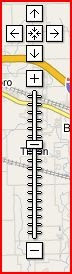
The button on the sliding bar can be can be used to control the zoom by clicking and dragging the button towards the '+' or '-' buttons. You can also click the sliding bar anywhere between the sliding bar button and the '+' or '-' for larger zooms. |
| ||||||||||||
**You can also pan by placing you cursor on the map and clicking and dragging. <> | |||||||||||||
| Paths: Some maps will have marked paths or 'routes. Sometimes these are drawn by the map maker and sometimes they are generated by the mapping software. In some cases the map user can change the path by 'grabbing' a point on the map between the start and finish points and dragging it to another location creating a third point. Grabbing is accomplished by a left click without releasing and dragging the 'mouse' to the new point. | |||||||||||||
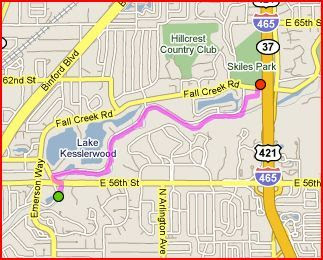
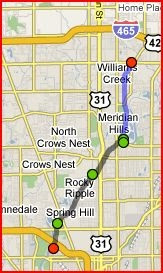
M3/4] Two views of the same trail, generated by the map maker. The green 'marker' and the red 'marker' are the start and end points of the path. The red and green markers in this example are standard markers but if the map maker wanted to he could use custom markers too. Remember that paths can also have labels which these paths do but they are hidden. If this was an 'interactive' map you could see the label by 'hovering' your cursor over the path. | |||||||||||||
 M3] Fall Creek Corridor [Trail] | 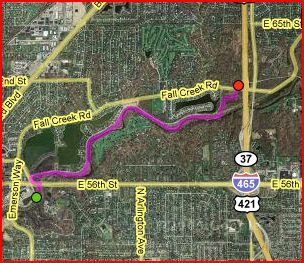 M4] Fall Creek Corridor [Trail] | ||||||||||||
M5] The Central Canal Towpath & The Monon Trails In M5 to the left two trails are shown. The color of the markers are not relevant here but notice that one segment of the trail is blue [The Monon Trail] and the other segment is black [The The Central Canal Towpath]. This is done at the discretion of the map maker. As stated before on some maps you could click and drag on the path or on one of the intermediate markers to create a new intermediate point. | \
NOTE: Sometimes its a good ideal to hover or click on the markers to see if there isn't relevant information on that marker. | ||||||||||||
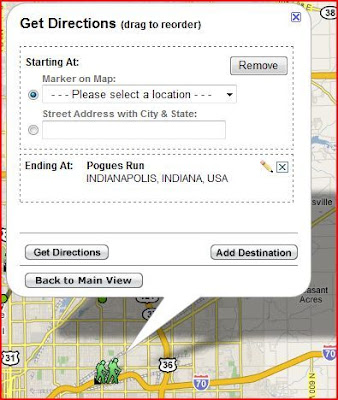
<> Get Driving Directions: As stated above when you click on a marker a dialog box opens up with several elements/features. Among these features is a 'Directions: from here | to here' feature with the 'from here' and 'to here' being links that will open another dialog box where you can obtain detailed instructions for downloading and/or printing. | |||||||||||||
| Map Tools 3] Get Directions: In the example to the right the 'to here' link was clicked. The process is the same if you click 'from here'. There are two 'option' boxes: 'Starting At' and 'Ending At', these are your start and end points and you will notice your ending point [Ending At] is already selected because we clicked on 'to here'. [Don't ask me what the pencil is for in the Ending At box because I don't know. When I click it strange things happen, woooooh. When I find out I'll update this page. In the Starting At box you have two options:
|  | ||||||||||||
There are also three buttons at the bottom:
| |||||||||||||
***If you wanted to you could have the same start and end points on a map with multiple points creating a circular route. You could even have a sequence which repeated some points such as you leave point A, drop off something at point B, got to point C, D and E, return to point B and pick up something and then return to point A. <> | |||||||||||||
| |||||||||||||
| <> | |||||||||||||
| Map Tools 4] Controlling What Shows: "Clearing the Clutter" | |||||||||||||
As stated above we will now deal with the 'Legend' and related items: | |||||||||||||
A 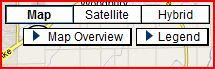 B 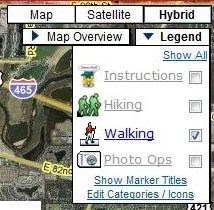 C C | By clicking on the Legend [A] a drop down menu [B] appears . There are four icons [  , ,  , ,  , , , 4 titles [Instructions, Hiking, Walking, and Photo Ops] with 4 corresponding checkable boxes. , 4 titles [Instructions, Hiking, Walking, and Photo Ops] with 4 corresponding checkable boxes.Whenever you visit a map if there are a lot of points of interest, represented by markers, you may find the map is very cluttered. Especially if the markers are large or positioned close together. This could be even worse if all the markers on the map are also labeled. The way map makers get around this, or better yet, make it possible for you to control, is to 'categorize' their markers. In this case each set of icon, title and check boxes represent one of four categories. Instructions, Hiking, Walking and Photo Opps markers. You will notice that in B only the Walking box is checked. In this example only the Walking markers will appear on the map. You control what shows by how many boxes you check or uncheck. If you want all markers to show you can check all 4 boxes or click the 'Show All' link. If you want to display the 'Label' for the Markers click the 'Show Marker Titles' link [which will then change to a 'Hide Marker Titles' link]. Ignore the 'Edit Categories/Icon' link in the example it normally would not be visible to users. Some maps will have a 'tabbed' section [C] which provide additional options and information for users. In C there is a 'tabbed' section with two tabs, 'Locations' and 'Welcome'. In this example clicking the 'Welcome' tab would display that tabs page which contains a welcome message and instructions. | ||||||||||||
| The 'Locations' tab is already selected and in this example contains information similar to what is found in the 'Legends' [B] drop down menu except with additional information. The '-' serve the same purpose as the Legends checkboxes. Clicking a '-' sign is the same as un-checking one of the Legends boxes. It will remove all the corresponding markers from the page, change the '-' to a '+' and collapse the list of markers for that category. Clicking the '+' is the same as checking a box and it will change to a '-' and the list of markers for that category will reappear. Notice that with each marker and marker label/title displayed are little Icons. These are shortcuts to features contained in each markers dialogue boxes. Earlier we explained that if you clicked a marker on the map or a markers label a dialogue box would open with information, maybe a small picture and options for getting driving instructions or viewing that picture[s]. In the Location Tabs clicking on the markers title will do the same but if you click on the little icons instead you will go straight to the those options without opening the dialogue box. Clicking the car icon will take you straight to the get directions box. Clicking the camera icon will take you straight to the enlarged pictures. Notice that not all marker titles have a picture icon because there are no pictures for that marker. The 'Collapse All' and 'Expand All' does the same as 'Show All Markers' and 'Hide All Markers' in the Legend drop down menu. The 'Show Descriptions' and 'Show Addresses' are self explanatory when you click them, if available. The 'Walking Map' link is an Ad [discussed earlier]. | |||||||||||||
<> | |||||||||||||
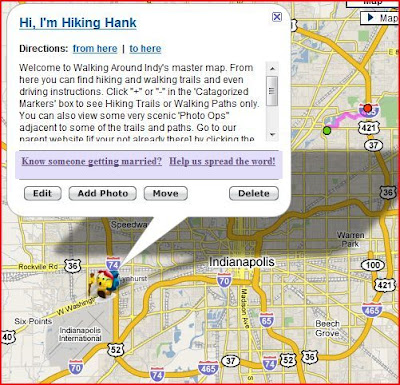
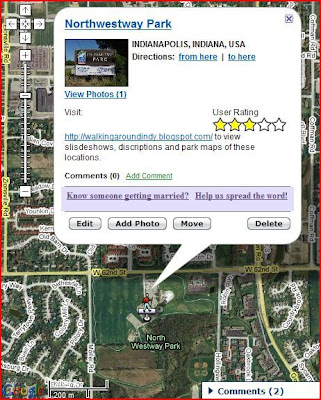

Ta Daaa!!!! There you have it. There you have it. Now you are a master navigator. A virtuoso of mapology. A guru of getting there. A one person GPS Remember that all mapping software may not use the same terminology as we use here and all map elements may not always appear on all maps and most of all you can't break it if you don't play with it, if you do break it just close the window and whistle.  .  |
| <> |
Copyright © 1992-2013 Glenn D. Littrell www.Glenns-World.com www.glennlittrell.com www.littrellfamily.net  |
Cell Phones Go Public This Month: HOAX
It’s A HOAX:
Sources & References:
 Glenn Littrell

Opt Out Information
all cell phone numbers are being released to telemarketing companies and you will start to receive sales calls.
YOU WILL BE CHARGED FOR THESE CALLS
To prevent this, call the following number from your cell phone:
888-382-1222.It is the National DO NOT CALL list -It will only take a minute of your time. It blocks your number for five (5) years. You must call from the cell phone number you want to have blocked. You cannot call from a different phone number.
HELP OTHERS BY PASSING THIS ON.
It takes about 20 seconds
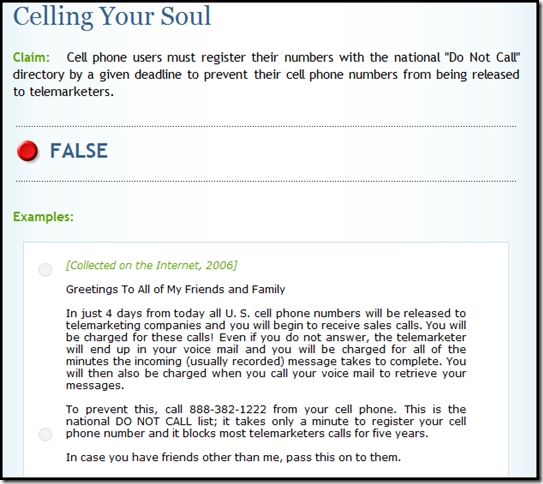
“Washington, DC -- For several years there has been a rumor circulating, mostly by e-mail, that a nationwide directory of cell phone numbers will be made available to telemarketers, and that consumers will start receiving telemarketing calls on their cell phones.Usually the phone number for calling the “Do not call list” is legitimate, so why does this hoax get perpetrated [circulating and updating since at least 2004]? Read my articles on “Spam & E-Mail Hoaxes”
There is no truth to this rumor. Cell phone numbers are not being released to telemarketers, and you will not soon be getting telemarketing calls on your cell phone. FCC rules prohibit the use of auto dialers and prerecorded messages to call cell phones without the consumer’s consent.
Thus, most telemarketers are barred from contacting consumers on their cell phones.” source: News Media Information FCC
Sources & References:

- Cell Phones and The Do Not Call Registry: “Despite viral email, there is no new cell phone database. Consumers may place their cell phone number on the National Do Not Call Registry to notify marketers that they don't want to get unsolicited telemarketing calls. The truth about cell phones and the Do Not Call Registry is: 1]The government is not releasing cell phone numbers to telemarketers…”
- FTC FACTS for Consumers “The Federal Trade Commission’s (FTC) Telemarketing Sales Rule (TSR) puts consumers in charge of the number of telemarketing calls they get at home. The..”
- National Do Not Call Registry “Scammers have been making phone calls claiming to represent the National Do Not Call Registry. The calls claim to provide an opportunity to sign up for the Registry. These calls are not coming from the Registry or the Federal Trade Commission, and you should not respond to these calls. To add your number to the Registry you can call 888-382-1222 from the phone you wish to register, or go click on “Register a Phone Number” in the left column of this page. Your registration will not expire. Telephone numbers placed on the National Do Not Call Registry will remain on it permanently due to the Do-Not-Call Improvement Act of 2007, which became law in February 2008…”
- Q&A: The National Do Not Call Registry
 Glenn Littrell
The above was in response to the following e-mail:

Cell Phones Go Public This Month:----- Original Message -----REMEMBER THIS IS A HOAX-----

Opt Out Information
all cell phone numbers are being released to telemarketing companies and you will start to receive sales calls.
YOU WILL BE CHARGED FOR THESE CALLS
To prevent this, call the following number from your cell phone:
888-382-1222.It is the National DO NOT CALL list -It will only take a minute of your time. It blocks your number for five (5) years. You must call from the cell phone number you want to have blocked. You cannot call from a different phone number.
HELP OTHERS BY PASSING THIS ON.
It takes about 20 seconds

Tax on all bank transactions: HOAX
Gary, 
this is a hoax... it has nothing to do with Obama or Pelosi. read about it here: http://www.snopes.com/politics/taxes/debtfree.asp This proposal has been around since 2004 and is one of many that are suggested as an alternative to Income or payroll taxes, not in addition to. This particular bill has been introduced every congress by the same Rep. from Pennsylvania. He never gets anyone to sign on to it, it always dies and he resubmits it again and again. Harkin and DeFazio have nothing to do with it. The 'copied from Snopes...' reference is a copy of the summation of the hoax in its different forms not a copy of the truth about the hoax.
 The surprising thing is that when Obama's name is attached to it it gets negative attention, but when Obama or the Democrats try to pass legislation to stop the banks from doing the very same thing again and again people don't get mad at the banks or complain about corporate America screwing us they get mad at Obama and the Dems for trying 'regulate', so while we are complaining about big government big corporations are sticking it to us.

this is a hoax... it has nothing to do with Obama or Pelosi. read about it here: http://www.snopes.com/politics/taxes/debtfree.asp This proposal has been around since 2004 and is one of many that are suggested as an alternative to Income or payroll taxes, not in addition to. This particular bill has been introduced every congress by the same Rep. from Pennsylvania. He never gets anyone to sign on to it, it always dies and he resubmits it again and again. Harkin and DeFazio have nothing to do with it. The 'copied from Snopes...' reference is a copy of the summation of the hoax in its different forms not a copy of the truth about the hoax.
 The surprising thing is that when Obama's name is attached to it it gets negative attention, but when Obama or the Democrats try to pass legislation to stop the banks from doing the very same thing again and again people don't get mad at the banks or complain about corporate America screwing us they get mad at Obama and the Dems for trying 'regulate', so while we are complaining about big government big corporations are sticking it to us.
The above was in response to the following e-mail:
----- Original Message -----REMEMBER THIS IS A HOAX-----
From: Gary
To: undisclosed recipients
Sent: Tuesday, September 06, 2011 10:43 AM
Subject: Fw: Any Bank Transaction to cost 1% fee
Good Luck with this one.
1% tax on all bank transactions HR 4646This government just cannot think of enough ways to hurt the American people!
This Bill must die
FORWARD THIS TO EVERYONE YOU KNOW!
1% tax on all bank transactions HR 4646 -
ANOTHER NEW OBAMA TAX SLIPPED IN WHILE WE WERE ASLEEP.
Checked this on snopes, it's true!
Check out HR 4646. (see below copied from Snopes)
President Obama's finance team is recommending a one percent (1%) transaction fee (TAX). Obama's plan is to sneak it in after the November elections to keep it under the radar.
This is a 1% tax on all transactions at any financial institution - banks, credit unions, savings and loans, etc.
Any deposit you make, or even a transfer within your account, will have a 1% tax charged.
~If your paycheck or your social security or whatever is direct deposit, it will get a 1% tax charged for the transaction.
~If your paycheck is $1000, then you will pay Obama $10 just for the privilege of depositing your paycheck in your bank.
Even if you hand carry your paycheck or any check into your bank for a deposit, 1% tax will be charged.
~You receive a $5,000 stock dividend from your broker, Obama takes $50 just to allow you to deposit that check in the bank
~If you take $1,000 cash to deposit at your bank, 1% tax will be charged.
Mind you, this is from the man who promised that if you make under $250,000 per year, you will not see one penny of new tax.
Keep your eyes and ears open, you will be amazed at what you learn about this guy's under-the-table moves to increase the number of ways you are taxed.
~Oh, and by the way, you receive a refund from the IRS next year and you have it direct deposited or you walk in to deposit that check, you guessed it.
You will pay a 1% charge of that money just for putting it in your bank.
Remember, any money, cash, check or whatever, no matter where it came from, you will pay a 1% fee if you put it in the bank.
Some will say, oh well, it's just 1%. Are you kidding me?
It's a 1% tax increase across the board.
Remember, once the tax is there, they can also raise it at will.
And if anyone protests, they will just say, "oh,that's not really a tax, it's a user fee"!
Think this is no big deal?
Go back and look at the transactions you made from last year's banking statements.
Then add the total of all those transactions and deduct 1%.
Still think it's no big deal???
Copied from SNOPES.com <http://snopes.com/>
1. snopes.com: Debt Free America Act<http://www.snopes.com/politics/taxes/debtfree.asp> ...
Is the U.S. government proposing a 1% tax on debit card usage and/or banking transactions?...It is true. The bill is HR -4646 introduced by US Rep Peter deFazio D-Oregon and US Senator Tom Harkin D-Iowa. Their plan is to sneak it in after the...
...moved beyond proposing studies and submitted the Debt Free America Act (H.R. 4646), a bill calling for the implementation of a scheme to pay down the...
...[2010] by Rep. Chaka Fattah (D-Pa.). His "Debt Free America Act" (H.R. 4646) would impose a 1 percent "transaction tax" on every financial transaction...
Wed, 13 Jul 2011 11:24:58 GMT http://www.snopes.com/politics/taxes/debtfree.asp
Subscribe to:
Posts (Atom)